Data reference means locating data—essential for processing. Built-in Python supports multiple reference methods: cell/range reference, DataFrame reference, named range reference, and Power Query data reference.
The xl() Function
Python code uses the xl() function to reference Excel values. Its syntax is:
xl(data, headers)
data: The Excel object to reference (cell range, DataFrame, named range, or Power Query connection).
headers (optional): Specifies if the first row is a header (True = yes, False = no; default = False).
Reference Cell/Range Data
For data directly input or imported into Excel, reference methods vary by title presence (yes/no) and data structure (single column, multiple columns, rows, values). We use an example to explain.
Reference Given Data (With Title)
As shown in Figure 4-16, cells A1:C7 contain data with a header row. Click cell E1, enter =PY(xl('A1:C7', headers=True)) in Python mode, and press Ctrl+Enter to return a DataFrame. Reference xl('E1') to reuse the data. For example, enter xl('E1').describe() in E1 to get descriptive statistics (count, mean, std, min, max, quartiles) (Figure 4-16).

Figure 4-16
Note: When headers=True, the first row is the DataFrame’s index (not included in calculations).
Reference Given Data (No Title)
By default, headers=False. Using xl('A1:C7') treats the first row as data (not a header). To exclude the first row, use xl('F2:H7') (Figure 4-17). Both methods auto-assign numeric column indices (0, 1, 2...) since no header is specified.
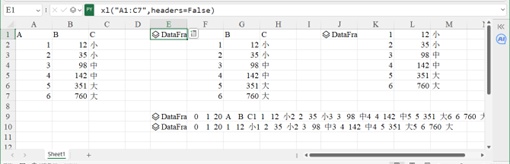
Figure 4-17
Reference Columns (With Title)
When headers=True, column names are specified. For example:

Figure 4-18
xl('E2')['B'] or xl('E2').B references column B (returns a Series) (Figure 4-18).
xl('E2')[['A','C']] or xl('E2').loc[:,['A','C']] references non-consecutive columns A and C.
xl('E2').loc[:,'A':'C'] references consecutive columns A to C.
xl('E2').loc[:,:'B'] references columns up to and including B.
xl('E5').loc[:,'B':] references columns after B (exclusive) (Figure 4-19).
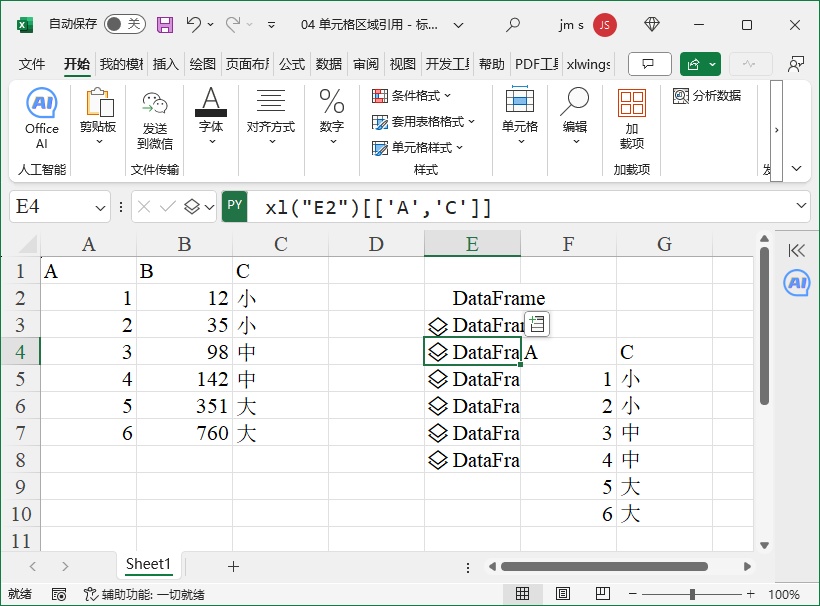
Figure 4-19
Reference Columns (No Title)
When headers=False, columns are referenced by index:
xl('E2')[2] or xl('E2').loc[:,2] references the 3rd column (index 2).
xl('E2').loc[:,1:2] references columns 2–3 (indices 1–2).
xl('E2').loc[:,[0,2]] references columns 1 and 3 (indices 0 and 2) (Figure 4-20).
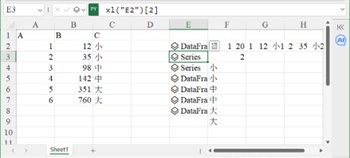
Figure 4-20
Reference Rows
xl('E2').loc[2] or xl('E2').loc[2,:] returns the 3rd row (index 2).
xl('E2')[2:6] returns rows 3–6 (indices 2–5).
xl('E2').loc[[2,5],:] returns rows 3 and 6 (indices 2 and 5) (Figure 4-21).
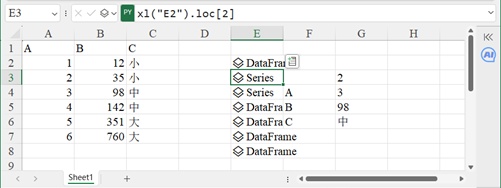
Figure 4-21
Reference Values
xl('E2').loc[3,'B'] returns the value in row 4, column B (index 3, 'B').
xl('E2').loc[3:6,'B':'C'] returns values in rows 4–6, columns B–C (Figure 4-22).
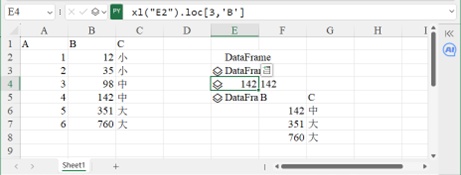
Figure 4-22
Key Difference: Series vs. DataFrame
xl('E2')['B'] returns a Series (single-layer index).
xl('E2')[['B']] returns a DataFrame (double-layer index) (Figure 4-23).
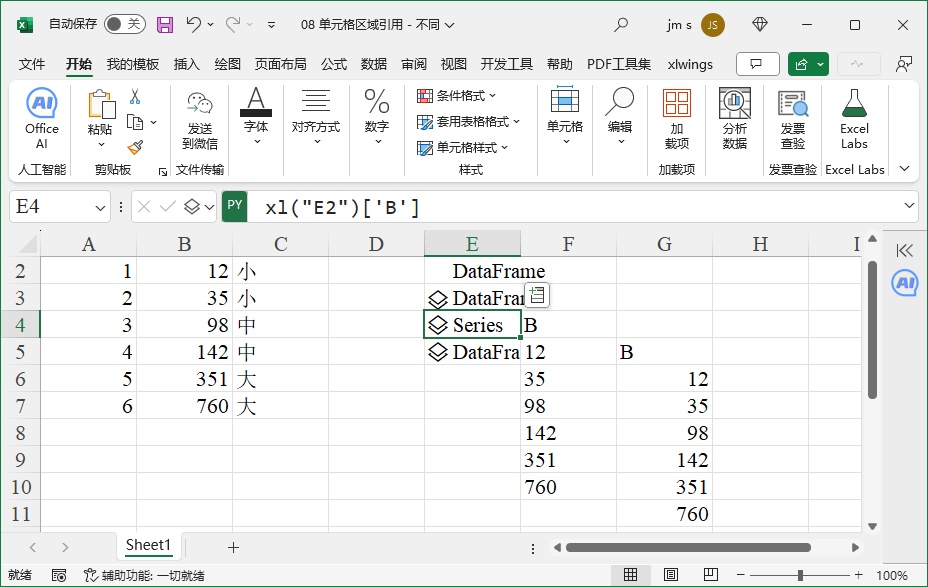
Figure 4-23
Reference Data via DataFrame Variables
Assign the DataFrame to a variable for easier reuse. For example:
In cell E2, enter df = xl('A1:C7', headers=True) to assign the DataFrame to df.
Use df to reference data:
df.describe(): Descriptive statistics.
df['B'] or df.B: Column B.
df.loc[2]: Row 3.
df[['A','C']]: Columns A and C (Figure 4-24).
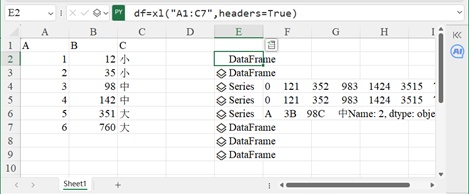
Figure 4-24
Reference Data via Named Ranges
Assign a name to a cell/range in Excel for easy reference:
Select cells A1:C7, go to Formulas → Define Name, and enter Data as the name.
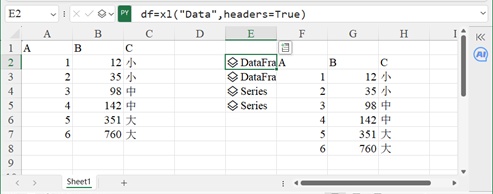
Figure 4-25
Use the name in Python: df = xl('Data', headers=True) (Figure 4-25).
Reference Power Query Imported Data
After importing data via Power Query (e.g., Salary Table.xlsx loaded into a worksheet named NewData), reference it with xl('NewData'):
xl('NewData[Salary]'): Column "Salary".
xl('NewData[[Age]:[Salary]]'): Columns "Age" to "Salary".
Use DataFrame methods (e.g., df[6] for column 7, df.loc[2:5] for rows 3–6) (Figure 4-27).
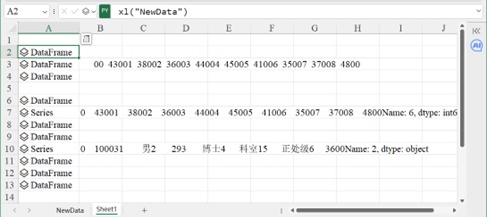
Figure 4-27
Specify Worksheets
When using Excel’s built-in Python, you can reference data from other worksheets within the same workbook. Simply add the name of the other worksheet followed by an exclamation mark (!) before the cell range reference. For example, in worksheet Sheet1, using "Sheet2!A1:C3" means you are referencing the data in the range A1:C3 of Sheet2 while working in Sheet1.
As shown in Figure 4-28, the workbook contains three worksheets: Sheet1, Sheet2, and Sheet3. In Sheet1, cell A1 contains the following formula in Python mode:
df = xl("Sheet2!A1:C7", headers=True)This formula references the data in the range A1:C7 of Sheet2. In cell A4, the following formula is entered in Python mode:
df2 = xl("Sheet3!A1:C7", headers=True)This formula references the data in the range A1:C7 of Sheet3.
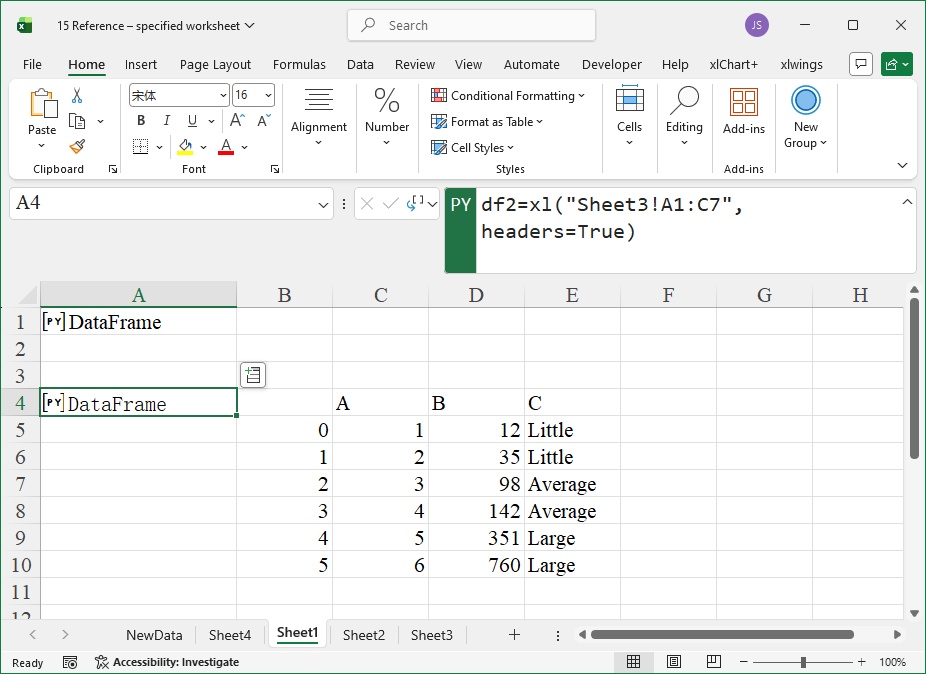
Figure 4-28 Referencing data from other worksheets
The previous subsection introduced how to reference data imported via Power Query. In fact, when data imported through Power Query is loaded into a new worksheet in Excel, it is presented as an Excel Table (also known as a super table). In this case, you can use the method described in the previous subsection to reference it, or you can convert the Excel Table into a normal range and then perform cross-worksheet references.
To convert an Excel Table to a normal range, first select the table, then click the “Convert to Range” button in the Table Design ribbon of Excel.
Special Specifiers for Power Query Data
Use specifiers to reference specific parts of Power Query data:
xl("NewData[[#Title],[Salary]]"): Header of the "Salary" column.
xl("NewData[[#Data],[Salary]]"): Data of the "Salary" column.
xl("NewData[#All]"): All headers and data.
xl("NewData[[#All],[Salary]]"): Header and data of the "Salary" column (Figure 4-29).
Escape Characters for Column Names
For column names starting with special characters (e.g., #sex, [Level]), escape with a single quote:
xl("NewData['#sex]'"): References the "#sex" column.
xl("NewData['[Level]'"): References the "[Level]" column (Figure 4-31).
This chapter covers the basics of data import, export, and reference for Python in Excel. Practice the examples to master these workflows1